> ## Documentation Index
> Fetch the complete documentation index at: https://docs.sdf.com/llms.txt
> Use this file to discover all available pages before exploring further.
# Adding Workspace Credentials
## Overview
As an SDF Cloud administrator, AWS and Snowflake credentials can be set within the console settings.
Before you can set your credentials on the SDF Cloud, you'll first need to authenticate with the platform and have a workspace available or pushed to the cloud.
The SDF Cloud is only available with the **Plus** plan or above at this time. If you'd like to get access, please [sign up here](https://console.sdf.com/welcome).
## Steps to Upload Credentials
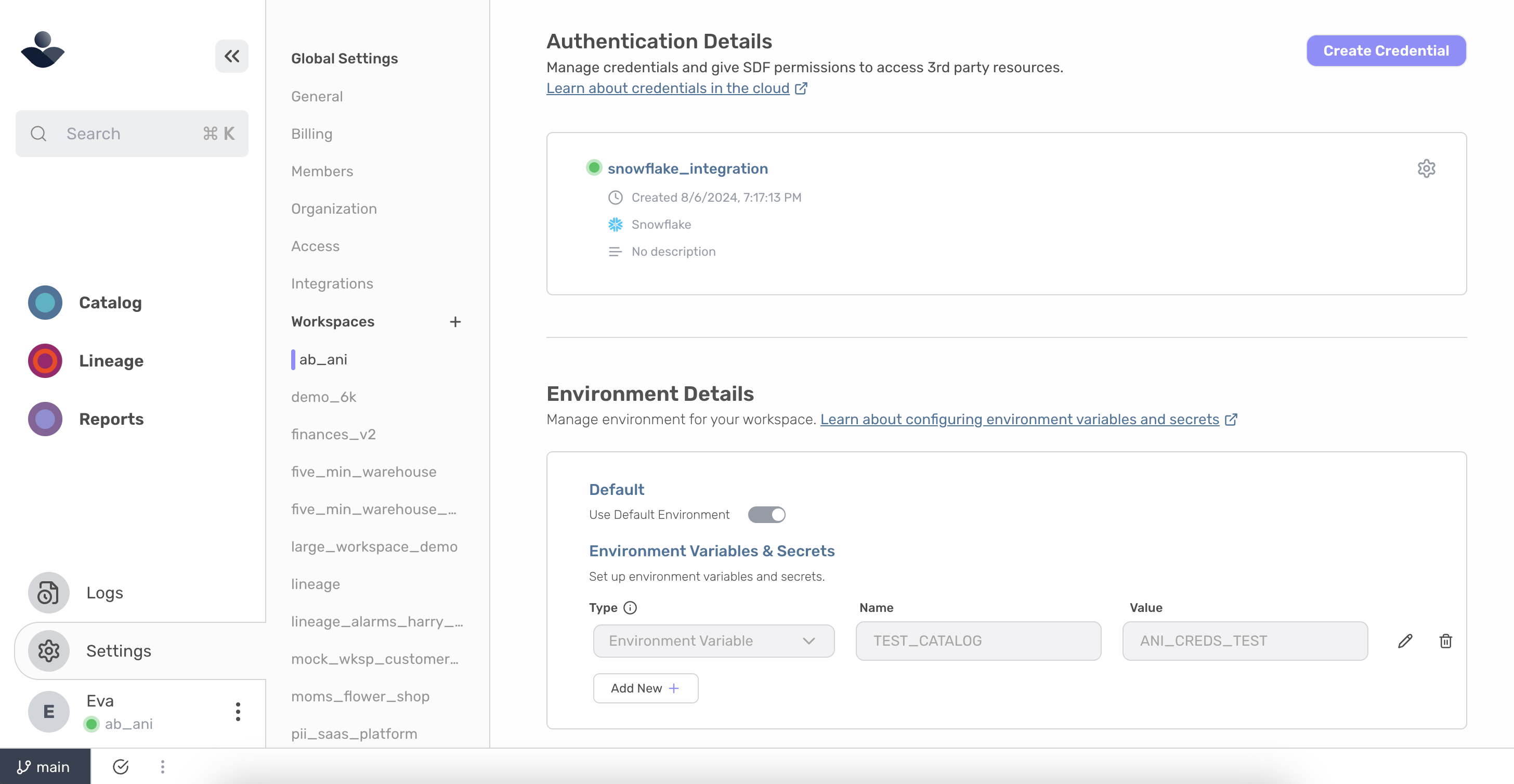
* Once logged in, locate and [click on 'Settings'](https://console.sdf.com/catalog/settings) in the navigation menu. Make sure you're in the workspace you'd like to add credentials to.
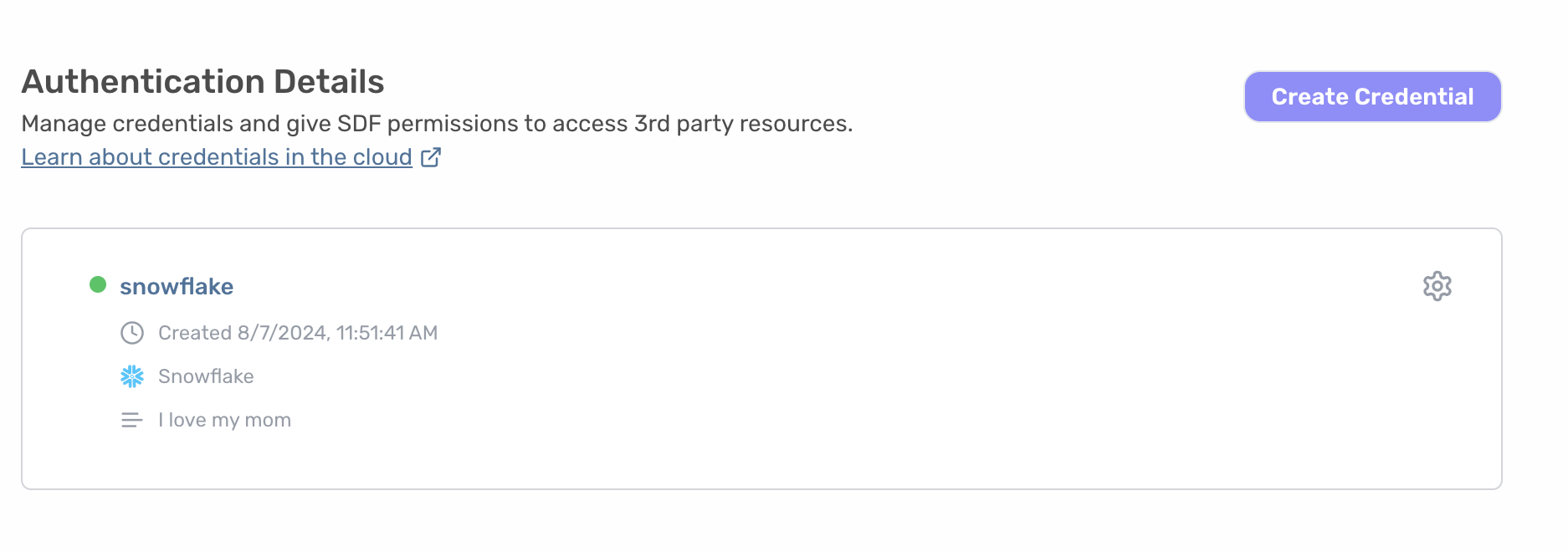
* Click on the 'Create Credential' button.
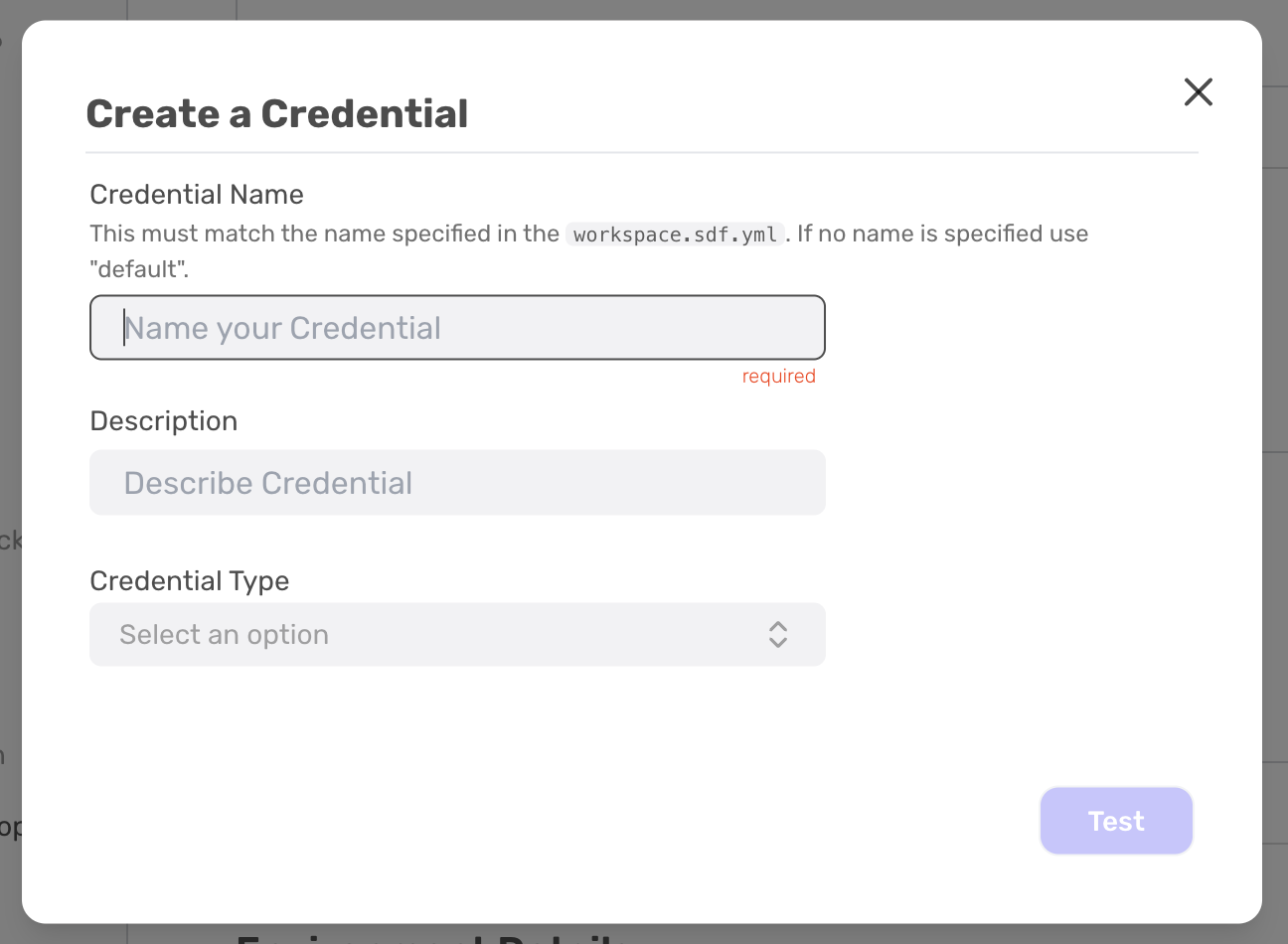
 * Name the credential and add an optional description. The name must be unique, and can only contain alphanumeric characters, underscores, hyphens, or dots.
The name of your credential must be the same name that is also specified in your `workspace.sdf.yml` for compilation to succeed. If there is no name specified in the `workspace.sdf.yml` you will need to name your credential `default`.
* Select the credential type. Currently, we support two providers: AWS Credentials and Snowflake Credentials.
1. **AWS Credentials**
* **Required Fields**: Access Key ID, Secret Access Key
* **Optional Fields**: Region, Role ARN
2. **Snowflake Credentials**
* **Required Fields**: Account ID, Username, Password or Private Key PEM
* **Optional Fields**: Role, Warehouse, Private Key Passphrase
3. **BigQuery Credentials**
* **Required Fields**: Project ID, Client Email, Private Key
* Utilize the Role ARN field if you'd like the credential to assume a specific role.
* BigQuery private keys are supported in both delimited and non-delimited formats.
* Snowflake private-key-pem are supported in PKCS#1, PKCS#8, and encrypted PKCS#8 formats. Delimeters must be included when pasting the pem.
Once you have filled in the required fields, you will be able to click 'Complete'.
* Name the credential and add an optional description. The name must be unique, and can only contain alphanumeric characters, underscores, hyphens, or dots.
The name of your credential must be the same name that is also specified in your `workspace.sdf.yml` for compilation to succeed. If there is no name specified in the `workspace.sdf.yml` you will need to name your credential `default`.
* Select the credential type. Currently, we support two providers: AWS Credentials and Snowflake Credentials.
1. **AWS Credentials**
* **Required Fields**: Access Key ID, Secret Access Key
* **Optional Fields**: Region, Role ARN
2. **Snowflake Credentials**
* **Required Fields**: Account ID, Username, Password or Private Key PEM
* **Optional Fields**: Role, Warehouse, Private Key Passphrase
3. **BigQuery Credentials**
* **Required Fields**: Project ID, Client Email, Private Key
* Utilize the Role ARN field if you'd like the credential to assume a specific role.
* BigQuery private keys are supported in both delimited and non-delimited formats.
* Snowflake private-key-pem are supported in PKCS#1, PKCS#8, and encrypted PKCS#8 formats. Delimeters must be included when pasting the pem.
Once you have filled in the required fields, you will be able to click 'Complete'.
 * After adding credentials, you may need to recompile your workspace to see the changes reflected. To do this, [navigate to the top of your workspace page](https://console.sdf.com/catalog/settings) and select "Recompile".
Interested in learning more about credentials or not sure where to find the specific information needed? Access the
[Snowflake Getting Started Guide](/integrations/snowflake/getting-started) or the [Redshift Getting Started Guide](/integrations/aws/redshift/getting-started).
## Troubleshooting
* **Missing Required Fields**: Ensure all required fields are filled in for the selected credential type.
* **Credential Not Saving**: Check for any error messages and ensure all fields are correctly filled.
* **Workspace Failed to Compile:** [Check the logs for your workspace](https://console.sdf.com/catalog/logs/default) to find more extensive information on why compilation failed. If your workspace fails to compile and you’ve integrated with Github, you may need to re-sync with Github or recompile your workspace first.
Still having trouble? [Join our Slack community](https://sdf.com/join) or email us at [help@sdf.com](mailto:help@sdf.com).
## Related Topics
Walk through the steps to integrate your GitHub repository with our cloud platform.
Learn how to configure environment variables and secrets.
* After adding credentials, you may need to recompile your workspace to see the changes reflected. To do this, [navigate to the top of your workspace page](https://console.sdf.com/catalog/settings) and select "Recompile".
Interested in learning more about credentials or not sure where to find the specific information needed? Access the
[Snowflake Getting Started Guide](/integrations/snowflake/getting-started) or the [Redshift Getting Started Guide](/integrations/aws/redshift/getting-started).
## Troubleshooting
* **Missing Required Fields**: Ensure all required fields are filled in for the selected credential type.
* **Credential Not Saving**: Check for any error messages and ensure all fields are correctly filled.
* **Workspace Failed to Compile:** [Check the logs for your workspace](https://console.sdf.com/catalog/logs/default) to find more extensive information on why compilation failed. If your workspace fails to compile and you’ve integrated with Github, you may need to re-sync with Github or recompile your workspace first.
Still having trouble? [Join our Slack community](https://sdf.com/join) or email us at [help@sdf.com](mailto:help@sdf.com).
## Related Topics
Walk through the steps to integrate your GitHub repository with our cloud platform.
Learn how to configure environment variables and secrets.