> ## Documentation Index
> Fetch the complete documentation index at: https://docs.sdf.com/llms.txt
> Use this file to discover all available pages before exploring further.
# Configuring Environment Variables and Secrets
## Overview
This guide will walk you through the steps to configure environment variables and secrets in our cloud platform. By adding these, you can securely manage sensitive data and environment-specific configurations.
If you do not set an environment in your `.sdf.yml` file, the environment will default to `dbg`.If you want to change the default, you will need to update your `.sdf.yml` workspace block. To learn more, [see our doc on Renaming & Environments](/guide/setup/environments).
All our credentials are stored encrypted at rest in accordance with our [SOC2 Compliance](https://soc2.sdf.com/).
## Steps to Configure Environment Variables and Secrets
* Once logged in, locate and [click on 'Settings'](https://console.sdf.com/catalog/settings) in the navigation menu. Make sure you're in the workspace you'd like to add environment variables to.
* Click into the input fields to begin adding an environment variable or secret. In the dropdown field, select the type you want to add: Environment Variable or Secret. Then provide a name and input the value for the key.
Note that the Name and Value fields must be unique, and can only contain alphanumeric characters, underscores, hyphens, or dots.
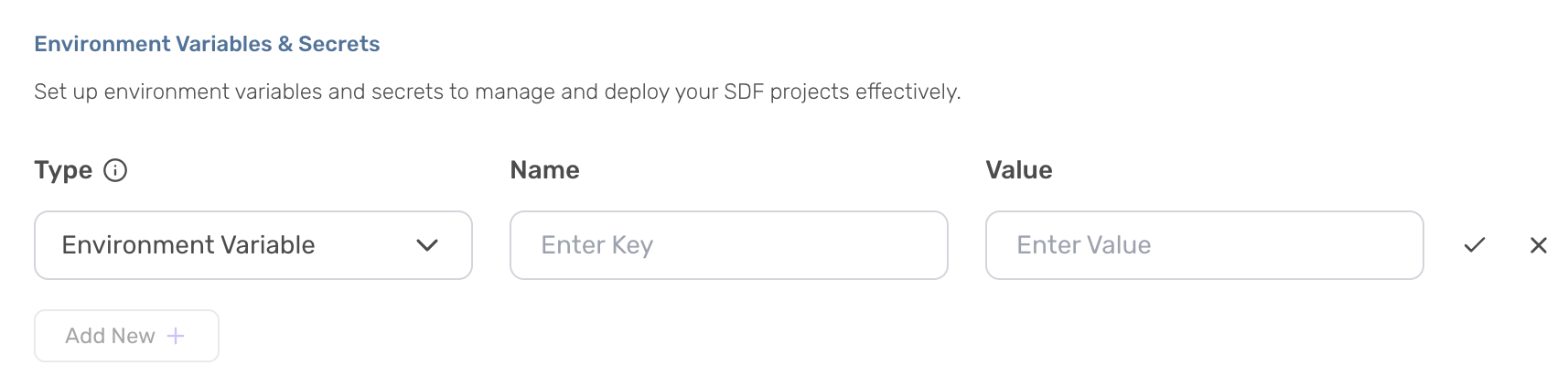 * Click the check mark to save the environment variable or secret. If you want to add more, click 'Add More' and repeat the steps.
After adding environment variables and secrets, you may need to recompile your workspace to see the changes reflected. To do this, [navigate to the top of your workspace page](https://console.sdf.com/catalog/settings) and select "Recompile".
## Troubleshooting
* **Missing Required Fields:** Ensure all required fields are filled in correctly.
* **Environment Variable/Secret Not Saving:** Check for any error messages and ensure all fields are correctly filled.
* **Workspace Failed to Compile:** [Check the logs for your workspace](https://console.sdf.com/catalog/logs/default) to find more extensive information on why compilation failed. If your workspace fails to compile and you’ve integrated with Github, you may need to re-sync with Github or recompile your workspace first.
Still having trouble? [Join our Slack community](https://sdf.com/join) or email us at [help@sdf.com](mailto:help@sdf.com).
## Related Topics
Walk through the steps to integrate your GitHub repository with our cloud platform.
Learn how to add credentials to your workspace.
* Click the check mark to save the environment variable or secret. If you want to add more, click 'Add More' and repeat the steps.
After adding environment variables and secrets, you may need to recompile your workspace to see the changes reflected. To do this, [navigate to the top of your workspace page](https://console.sdf.com/catalog/settings) and select "Recompile".
## Troubleshooting
* **Missing Required Fields:** Ensure all required fields are filled in correctly.
* **Environment Variable/Secret Not Saving:** Check for any error messages and ensure all fields are correctly filled.
* **Workspace Failed to Compile:** [Check the logs for your workspace](https://console.sdf.com/catalog/logs/default) to find more extensive information on why compilation failed. If your workspace fails to compile and you’ve integrated with Github, you may need to re-sync with Github or recompile your workspace first.
Still having trouble? [Join our Slack community](https://sdf.com/join) or email us at [help@sdf.com](mailto:help@sdf.com).
## Related Topics
Walk through the steps to integrate your GitHub repository with our cloud platform.
Learn how to add credentials to your workspace.